Saturday, 18 August 2012
How to Solve: Tricks & Solutions: Usb Device Not Recognized???
How to Solve: Tricks & Solutions: Usb Device Not Recognized???: This post is about the frequent problem occuring in our field...sometimes our USB's, Card Reader's,Bluetooth Doesn't Get Recognized by The ...

How to Solve: Tricks & Solutions: Usb Device Not Recognized???
How to Solve: Tricks & Solutions: Usb Device Not Recognized???: This post is about the frequent problem occuring in our field...sometimes our USB's, Card Reader's,Bluetooth Doesn't Get Recognized by The ...
Wednesday, 15 August 2012
Another Alternative to install Turbo C in Windows 7
Download this tool - TurboC Simulator 1.6.5


Usb Device Not Recognized???
This post is about the frequent problem occuring in our field...sometimes our USB's, Card Reader's,Bluetooth Doesn't Get Recognized by The O.S.
so here are some of the SOLUTION'S OR TRICKS which i found on the net which might help you..

So As we all know that the hardware devices have drivers associated similarly USB devices also have it. Sometimes proper drivers do not get detected after the initial installation so reinstallation of the drivers helps resolve the issues.
You may check after uninstalling and reinstalling the USB drivers if you are able to connect. You may disconnect all USB devices and then perform the following steps:
1. ClickStart, and then click Control Panel.
2. ClickSystem and Maintenance, click System, and then clickDevice Manager.
Note If Control Panel is in Classic View, double-clickSystem, and then click Device Manager.
If you are prompted for an administrator password or for a confirmation, type the password, or clickAllow.
3. In Device Manager, double click to expand "Universal Serial Bus controllers", right click on the Host Controller, click "Uninstall" and click "OK".
Check if at all there is an exclamation mark along the driver, it suggests issues with the driver installed.
4. Repeat the step 2 to uninstall all items under "Universal Serial Bus controllers".
Then, restart your computer and Windows 7 will reinstall all USB controllers automatically.
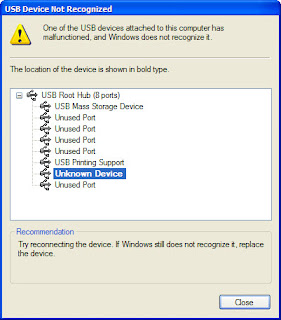
If This Doesn't Work Then You Can Also Try.. Second Option Which is almost similar but the little difference is you have to uninstall all the unknown devices..
1. Open cmd Prompt.
2. At a command prompt, type the following command , and then press ENTER:
“set devmgr_show_nonpresent_devices=1”
3. Type the following command a command prompt, and then press ENTER:
“start devmgmt.msc”
4. Troubleshoot the devices and drivers in Device Manager. (**they will be greyed out)
NOTE: Click Show hidden devices on the View menu in Device Managers before you can see devices that are not connected to the computer.
5. When you finish troubleshooting, close Device Manager.
6. Type exit at the command prompt.
Note that when you close the command prompt window, Window clears the devmgr_show_nonpresent_devices=1 variable that you set in step 2 and prevents ghosted devices from being displayed when you click Show hidden devices.
And If this also dont work then you can try another option too..
In this discussion thread there is a procedure as follows:
 1. Click “Start”, type “REGEDIT” (without quotation marks) in the “Search” bar and press Enter.
Note: If UAC (User Account Control) pops up, please accept it.
2. Right click “Computer” (the root node) in the left pane, click “Export” under the “File” menu, choose “All” under “Export range”, and select “Desktop”
in the “Save” in box and type backup in “File Name”. Click “Save”.
Note: The backup file is on the Desktop and named backup.reg. We can simply restore the registry by double-clicking the backup.reg file.
3. Click “Start”, type “REGEDIT” (without quotation marks) in the “Search” bar and press Enter again.
4. Locate the “UpperFilters” value under the following key in the registry:
HKEY_LOCAL_MACHINE\SYSTEM\CurrentControlSet\Control\Class\{36FC9E60-C465-11CF-8056-444553540000}
5. On the “Edit” menu, click “Delete”, and then click “OK”.
6. Locate the “LowerFilters” value under the same key in the registry:
HKEY_LOCAL_MACHINE\SYSTEM\CurrentControlSet\Control\Class\{36FC9E60-C465-11CF-8056-444553540000}
7. On the “Edit” menu, click “Delete”, and then click “OK”.
8. Quit Registry Editor and restart the computer.
Of the above 3 solutions i hope one shall surely be useful to you... :)
so here are some of the SOLUTION'S OR TRICKS which i found on the net which might help you..

So As we all know that the hardware devices have drivers associated similarly USB devices also have it. Sometimes proper drivers do not get detected after the initial installation so reinstallation of the drivers helps resolve the issues.
You may check after uninstalling and reinstalling the USB drivers if you are able to connect. You may disconnect all USB devices and then perform the following steps:
1. ClickStart, and then click Control Panel.
2. ClickSystem and Maintenance, click System, and then clickDevice Manager.
Note If Control Panel is in Classic View, double-clickSystem, and then click Device Manager.
If you are prompted for an administrator password or for a confirmation, type the password, or clickAllow.
3. In Device Manager, double click to expand "Universal Serial Bus controllers", right click on the Host Controller, click "Uninstall" and click "OK".
Check if at all there is an exclamation mark along the driver, it suggests issues with the driver installed.
4. Repeat the step 2 to uninstall all items under "Universal Serial Bus controllers".
Then, restart your computer and Windows 7 will reinstall all USB controllers automatically.

If This Doesn't Work Then You Can Also Try.. Second Option Which is almost similar but the little difference is you have to uninstall all the unknown devices..
1. Open cmd Prompt.
2. At a command prompt, type the following command , and then press ENTER:
“set devmgr_show_nonpresent_devices=1”
3. Type the following command a command prompt, and then press ENTER:
“start devmgmt.msc”
4. Troubleshoot the devices and drivers in Device Manager. (**they will be greyed out)
NOTE: Click Show hidden devices on the View menu in Device Managers before you can see devices that are not connected to the computer.
5. When you finish troubleshooting, close Device Manager.
6. Type exit at the command prompt.
Note that when you close the command prompt window, Window clears the devmgr_show_nonpresent_devices=1 variable that you set in step 2 and prevents ghosted devices from being displayed when you click Show hidden devices.
And If this also dont work then you can try another option too..
In this discussion thread there is a procedure as follows:

Note: If UAC (User Account Control) pops up, please accept it.
2. Right click “Computer” (the root node) in the left pane, click “Export” under the “File” menu, choose “All” under “Export range”, and select “Desktop”
in the “Save” in box and type backup in “File Name”. Click “Save”.
Note: The backup file is on the Desktop and named backup.reg. We can simply restore the registry by double-clicking the backup.reg file.
3. Click “Start”, type “REGEDIT” (without quotation marks) in the “Search” bar and press Enter again.
4. Locate the “UpperFilters” value under the following key in the registry:
HKEY_LOCAL_MACHINE\SYSTEM\CurrentControlSet\Control\Class\{36FC9E60-C465-11CF-8056-444553540000}
5. On the “Edit” menu, click “Delete”, and then click “OK”.
6. Locate the “LowerFilters” value under the same key in the registry:
HKEY_LOCAL_MACHINE\SYSTEM\CurrentControlSet\Control\Class\{36FC9E60-C465-11CF-8056-444553540000}
7. On the “Edit” menu, click “Delete”, and then click “OK”.
8. Quit Registry Editor and restart the computer.
Of the above 3 solutions i hope one shall surely be useful to you... :)
Thursday, 17 February 2011
how To Play A Game Without A graphics Card
This a major problem for many gamers who want to play latest games but the configuration of there system does not allow them to do that…So they leave the game and will keep on searching for tools whether they can play any game without a graphic card or they will search a game which suits there system configuration..For them i have a wonderful alternative where you can play any latest game without a graphic card and this is totally free and harmless…So lets take a look at the software which makes this possible..


The application is called as 3d analyzer and it helps any game to increase the effects of graphics through its functionality and makes any game work like a charm.So what is 3d analyzer and how does it work will be discussed below now.
3d analyzer is very easy to use and all you have to do everytime is to open the application and press on select and then choose the .exe game file from destination and run it. Take a screenshot of how the application looks like.


As you can see that i have selected a game and applied some settings for the game to perform well where i can choose a lot of requirements to set according to my needs and use it further. After selecting the game all you have to see the requirements of the game which you want to play and set the options here. If the game requires some additions features like 2.0 pixel shader and etc..you can change here and then run the game successfully.
3d analyzer can perform the following options and are really executed well if done perfectly.This application will load direct x 9.0 options. and make sure you have installed a latest direct x version before you run any game.
DOWNLOAD HERE
Subscribe to:
Posts (Atom)